Connect to a server with SSH
This page connects to the example server "example.com" as the user "user". Use the host name and user name your server administrator gave you instead.
Steps
- Press ⌘N (or choose [File] > [New connection...]).
- Make sure "TCP/IP" is selected.
- In "Host", type the host name or IP address (for example example.com).
- Under "Service", choose "SSH". Leave the TCP port at 22.
- Type your "User name" (for example user).
- You can leave "Password" empty. You will then be asked for it in the terminal after connecting.
- Click "Connect".
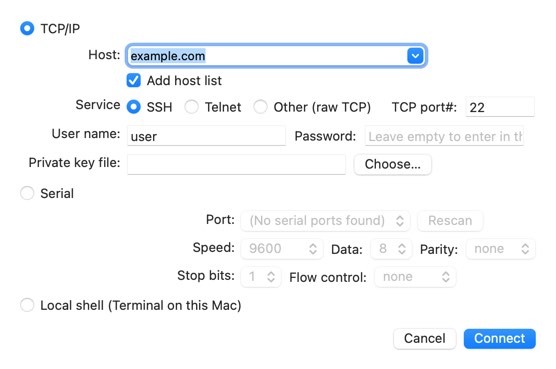
The New connection dialog with example.com as the host and user as the user name
The question on your first connection
The first time you connect to a server, the terminal shows a question like this:
The authenticity of host 'example.com (...)' can't be established.
ED25519 key fingerprint is SHA256:....
Are you sure you want to continue connecting (yes/no/[fingerprint])?
- It means "This is the first connection to this server. Is it really the right one?"
- If the host is correct, type yes and press return.
- You will not be asked again for this server.
If a server you use every day shows "REMOTE HOST IDENTIFICATION HAS CHANGED!", do not continue. Check with the server administrator first.
Enter your password
- When the terminal shows something like "user@example.com's password:", type your password.
- The characters you type are not shown. Just type and press return.
- When the server prompt (such as "$") appears, you are connected and can type commands.
Disconnect
- Type
exiton the server, or choose [File] > [Disconnect] (⌘I). - To close the window, press ⌘W.
More details
- New connection
- SSH connections (key authentication, host key checks)
- SSH settings