Send and receive files
Drag and drop (the easiest way)
- Drag the file from the Finder onto the terminal window.
- A dialog asks what to do.
- When connected with SSH, choose "SCP" to copy the file to the server as it is. Use "dest:" to choose the folder on the server (empty means your home directory).
- "Send File (Paste content of file)" sends the file's contents as if you typed them.
- "Paste Filename" pastes the file name (path).
- Click "OK".
Send and receive with SCP (SSH only)
- In a window connected with SSH, choose [File] > [SSH SCP...].
- To send, choose the Mac file in the upper "From:" (you can also drag it onto the dialog), type the destination in "To:" and click "Send".
- To receive, type the server file name in the lower "From:", choose the Mac folder in "To:" and click "Receive".
Send the contents of a file
Useful for pouring a configuration file into a device.
- Choose [File] > [Send file...].
- Click the "..." button and choose the file.
- If the device is slow to receive, use "Delay type" to wait a little after each line.
- Click "OK" to start sending.
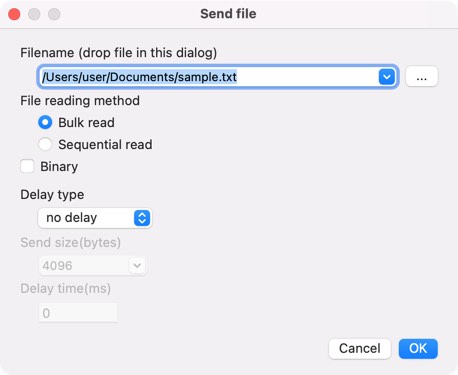
The [File] > [Send file...] dialog (the file name is an example)
XMODEM, ZMODEM and others
To write firmware to a device connected by serial, use XMODEM, YMODEM, ZMODEM, Kermit and so on under [File] > [Transfer]. Choose the protocol named in the device's manual and pick the file with "Send...".
More details
- Drag and drop
- SSH SCP
- Send file
- File transfer protocols (XMODEM, ZMODEM and others)
Quick guide contents | Next: Change the look and the language