Change the look and the language
All settings are in one window ("Tera Term: Additional settings"), arranged in tabs. Whichever item you choose in the [Setup] menu, this window opens at the matching tab.
Changes show on the terminal right away, so you can try them while you look. "OK" keeps them and "Cancel" puts everything back.
Font and text size
- Choose [Setup] > [Font...].
- Click the "Select..." button to the right of the font name under "VTWindow Font", and choose a font and size.
- To go back, click "Reset to Default Font (…)" (shown only after you changed the font).
- Click "OK".
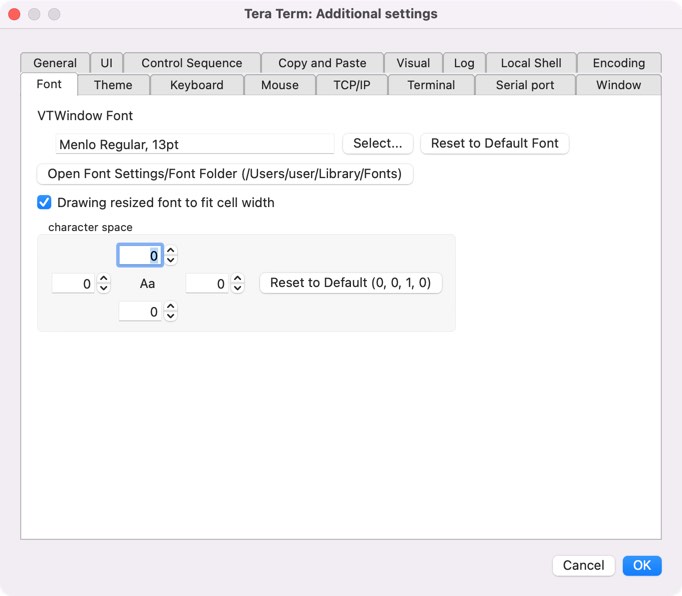
[Setup] > [Font...]. "character space" at the bottom changes the gaps between characters and lines
Character space (gaps between lines and characters)
The four numbers in "character space" add space (in dots) around each character. A larger top number widens the gap between lines; the left and right numbers widen the gap between characters. "Reset to Default (0, 0, 1, 0)" puts them back.
Colors (themes)
- Choose [Setup] > [Theme...].
- At the bottom, under "Color Scheme (Mac)", choose one in "Color scheme". The sample above shows it right away.
- Click "OK" to apply the text, background and cursor colors of that scheme.
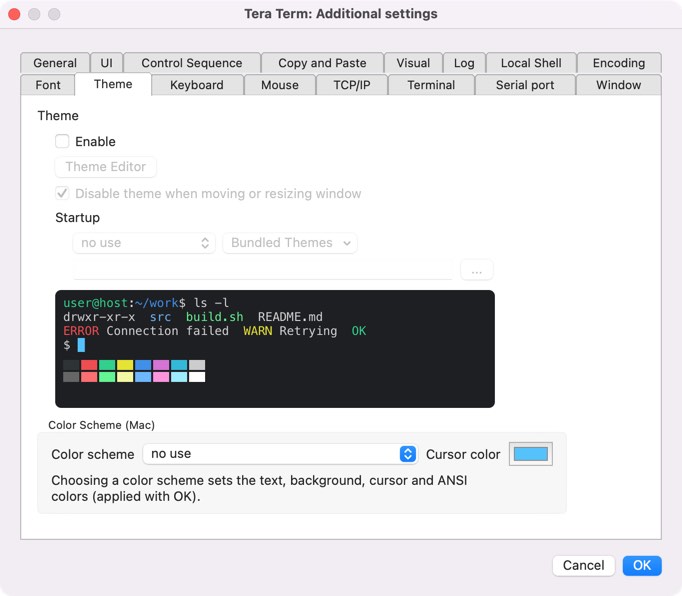
[Setup] > [Theme...]. The sample changes as you choose a scheme
Text color, background color and title
[Setup] > [Window...] changes the window title, the cursor shape, the text and background colors (red, green and blue sliders) and how many lines are kept for scrolling back.
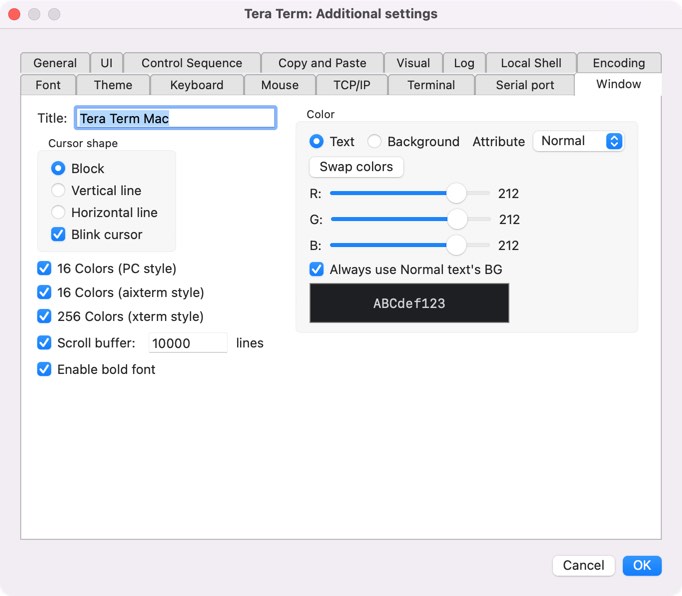
[Setup] > [Window...]
Terminal size and new-line codes
[Setup] > [Terminal...] (⌘,) changes the terminal size (columns × lines) and the new-line codes. Usually you do not need to change them.
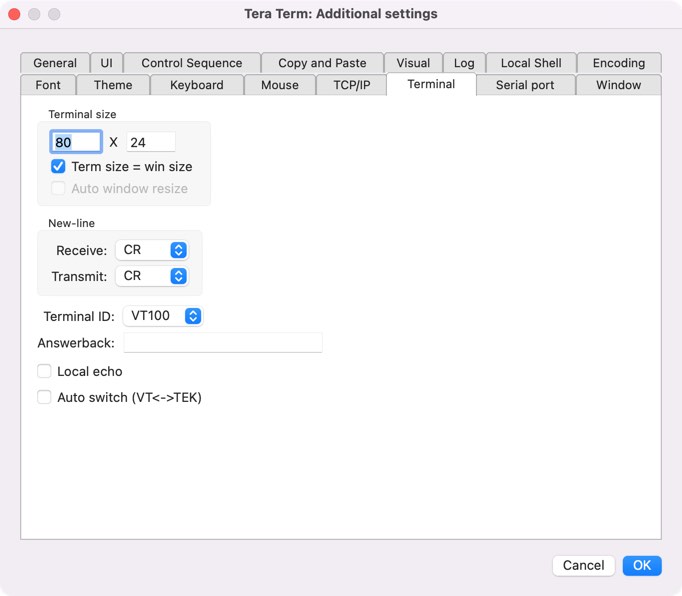
[Setup] > [Terminal...]
Change the language
- Choose [Setup] > [Additional settings...].
- Open the "UI" tab.
- Choose a language in "UI Language". "Automatic (follow macOS settings)" follows your macOS language settings.
- Click "OK". Menus and dialogs switch to the new language.
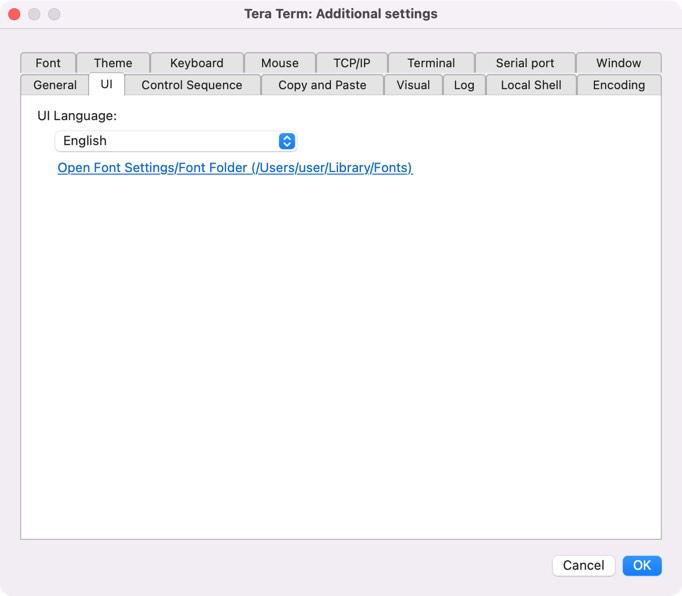
The "UI" tab of [Setup] > [Additional settings...]
The help is shown in Japanese when the UI is Japanese, and in English for all other languages.
Saving settings
Settings you confirm with "OK" are saved automatically and used the next time. To write them to a file in the same format as TERATERM.INI on Windows, use [Setup] > [Save setup...].